
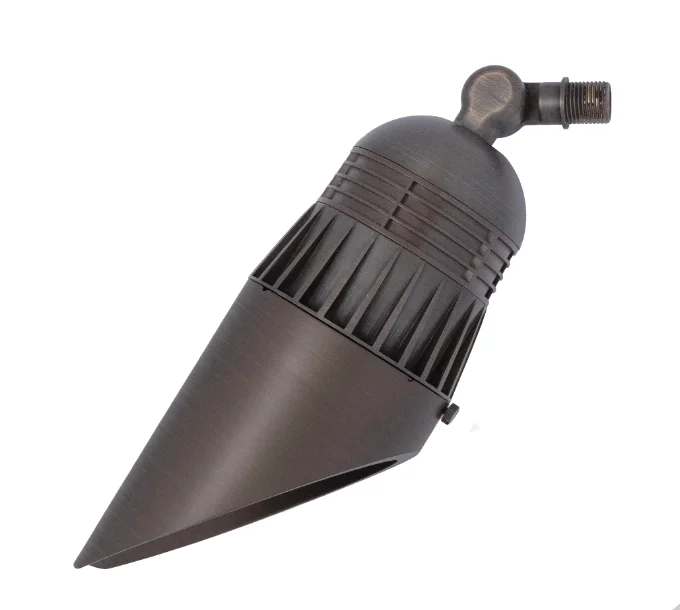
MORPHEUSUser Manual
Patent Pending
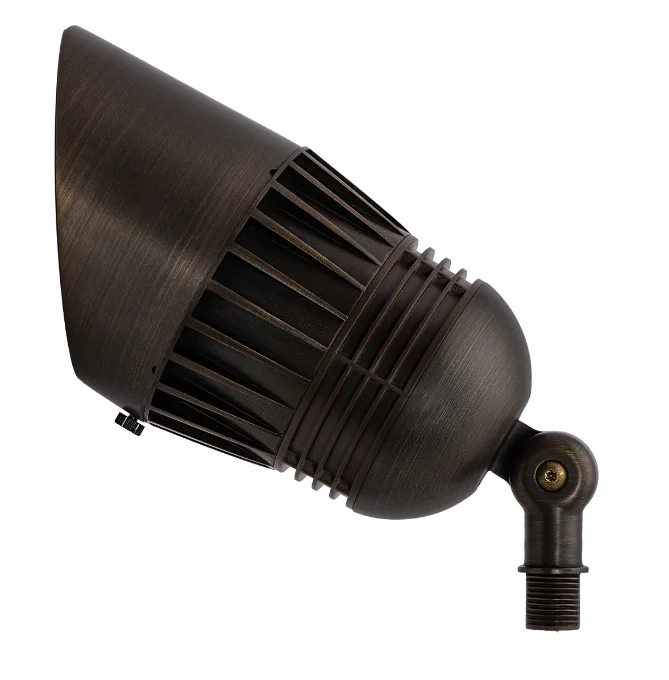
Integrated LED · Smart Accent Fixture

MORPHEUS

One Fixture. 10,000+ Possibilities
Ordering Code
490400 · 2700K
490400 · 3000K
Specifications
Voltage
9–15 Vac · 50/60 Hz · 4.5 A max · 26 W
Housing
Cast brass, adjustable beam control
Finish
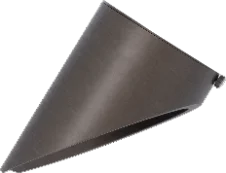
Weathered brass · 3″ shroud incl.
Weight
5.2 lb
Optics
Liquid crystal · two-axis XY control
Mounting
Threaded ½″ NPT — see chart
Wiring
Pre-wired 5 ft 18/2 pigtail
CRI
85+
Warranty
10-year warranty
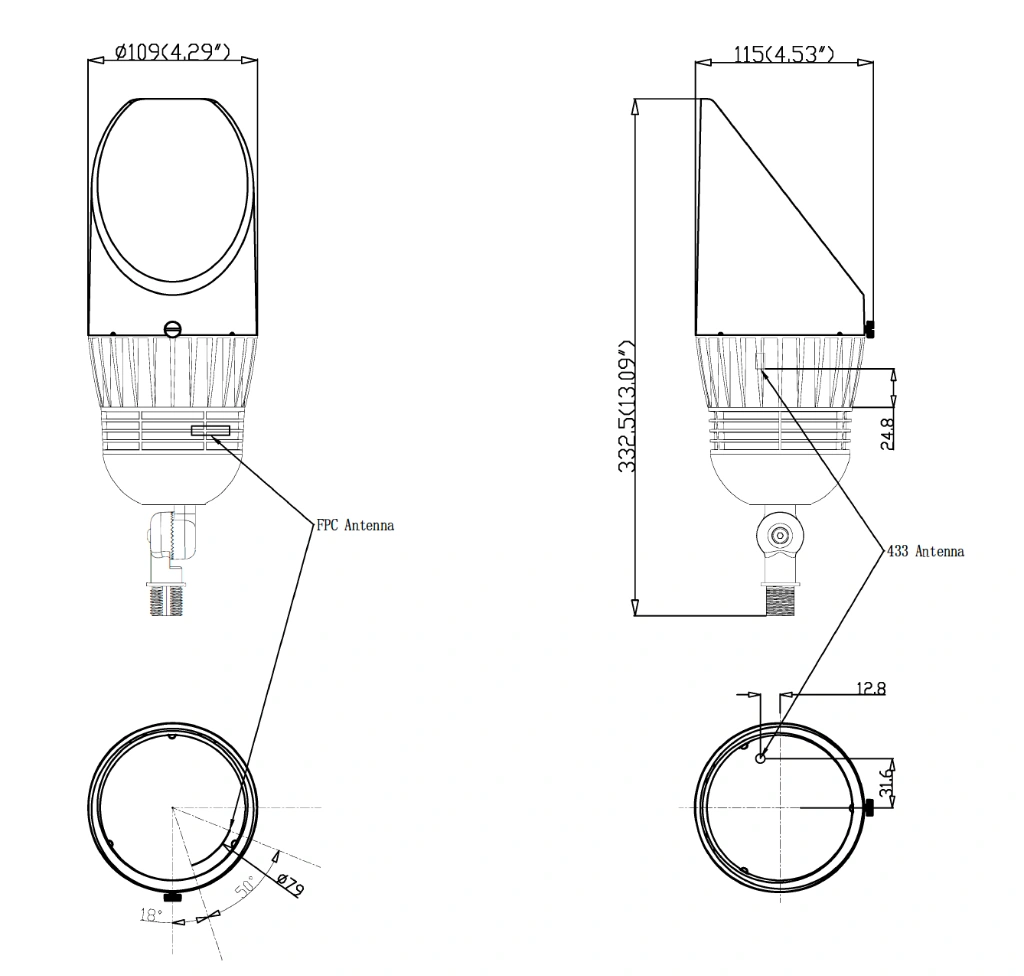
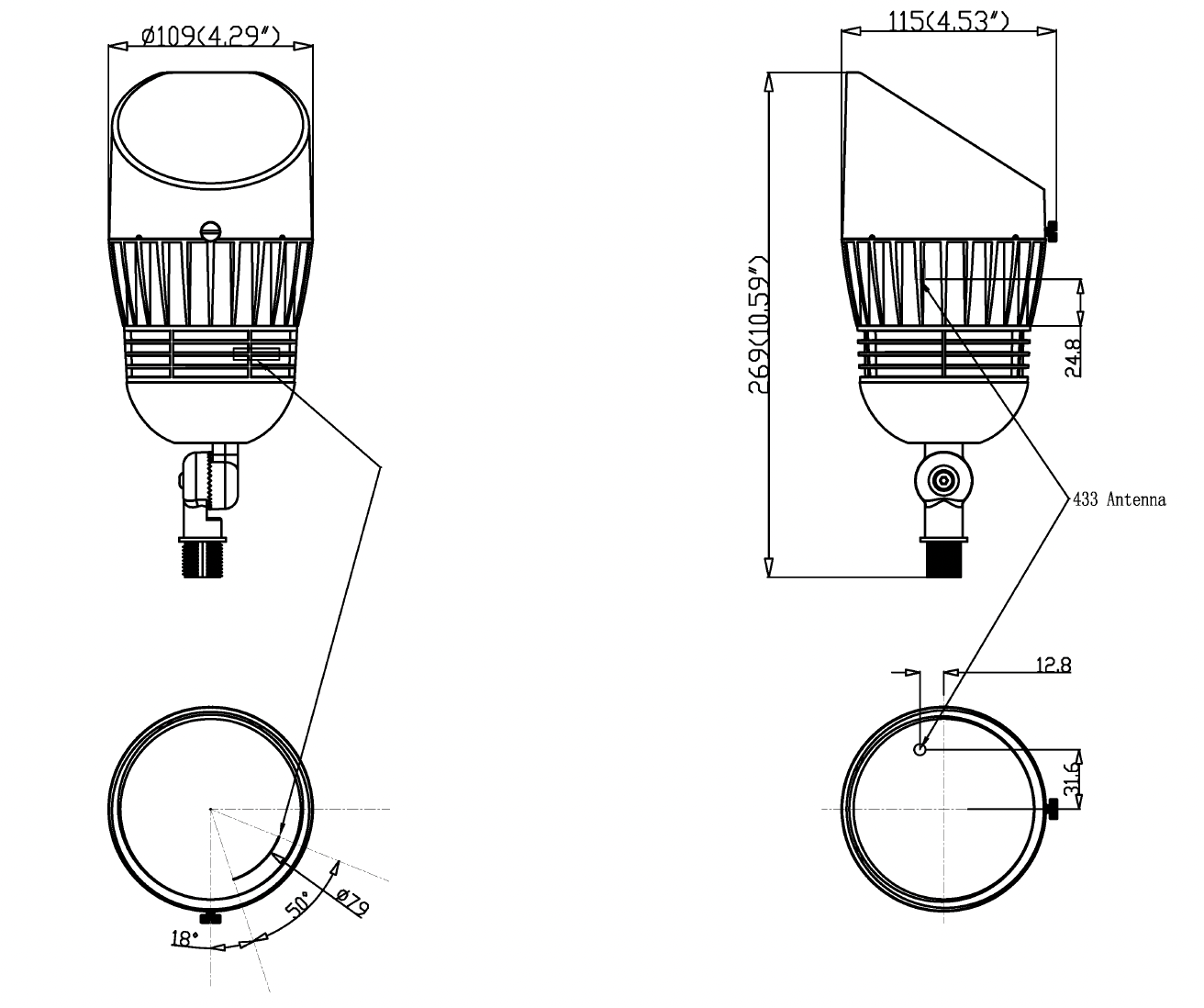
Dimensions with 3" and 6" Shrouds(click to enlarge)
Morpheus downlight dimensions drawing Morpheus dimensions drawing
DauerManufacturing.com · 888.DAUER.LED
MORPHEUSUser Manual
Specification Sheet

Beam Angle & Lumen Output

Use no less than 32.30 VA per fixture for transformer load calculations.

Beam Angle Iin 100% Iin ~32% Output 100% Output ~32%
3000K · 490400-3000K · 26W · 32.28 VA (Click rows to view IES)
16° 2.69 A 1.42 A 2288.6 lm 999.1 lm
25° 2.67 A 1.38 A 2174.8 lm 1048.1 lm
35° 2.66 A 1.38 A 2077.0 lm 999.5 lm
45° 2.67 A 1.33 A 1941.5 lm 911.5 lm
70° 2.68 A 1.36 A 1495.2 lm 701.6 lm
Horiz 2.68 A 1.39 A 1754.9 lm 835.4 lm
Vert 2.68 A 1.38 A 1757.5 lm 836.2 lm
2700K · 490400-2700K · 26W · 32.28 VA (Click rows to view IES)
16° 2.66 A 1.43 A 1960.6 lm 998.5 lm
25° 2.66 A 1.46 A 2076.0 lm 1065.4 lm
35° 2.66 A 1.44 A 1984.0 lm 1007.6 lm
45° 2.66 A 1.46 A 1854.2 lm 939.0 lm
70° 2.67 A 1.43 A 1413.0 lm 695.9 lm
Horiz 2.67 A 1.44 A 1644.1 lm 836.1 lm
Vert 2.67 A 1.43 A 1641.6 lm 840.4 lm

Ordering Information

Fixture Ordering — Uplight Mounting (ordered separately)
Example: 490400-3000K · 490410 - MS - R3
Mounting
Riser
MS Composite stake (incl.) 490034
R2 2″ brass riser 490038
M3 Trident Heavy-Duty 3-Prong Stake 490036
R3 3″ brass riser 490039
PM Round pier mount 490057
R6 6″ brass riser 490031
MR Round tapered 3-hole surface mount 490048
R12 12″ brass riser 490032
MP PVC/Brass post stake 490037
R24 24″ brass riser 490033
GM Brass gutter mount 490047
RMP Round Brass Electrical Mounting Plate - 490043
REP Rectangular Brass Electrical Mounting Plate - 490044
DB Brass Direct Burial J-Box - 490058
Fixture Ordering — Downlight Mounting (ordered separately)
Example: 490400-2700K - TH9 - 490410
Mounting
TM TM-Tree Mount - 490046
TH9 Tree Hugger Strap Kit 9″- Max 14″ - 490330
TH15 Tree Hugger Strap Kit 15″- Max 22.5″ - 490331
TH24 Tree Hugger Strap Kit 24″- Max 31.5″ - 490332
TH36 Tree Hugger Strap Kit 36″- Max 46.5″ - 490333
TH48 Tree Hugger Strap Kit 48″- Max 61.5″ - 490334
N Newhouse Brass Tree Mount J-Box - 490060
EM Round Electrical Mounting Plate 490043
MSM Brass Micro Surface Mount 490049
RMP Rectangular Electrical Mounting Plate 490044
Optional 6" Shroud —  490410
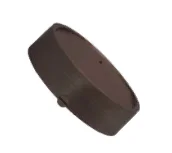
Optional Flat Cover  — 490411
DauerManufacturing.com · 888.DAUER.LED
MORPHEUSUser Manual
Safety Information

Safety Information

Read and follow all warnings before installation. Review with your compliance team prior to publication.

1
Install and wire the fixture in accordance with national and local electrical codes and applicable low-voltage landscape lighting requirements.
2
Use only with compatible 9–15 Vac low-voltage outdoor landscape lighting systems and properly rated transformers.
3
Do not exceed transformer load capacity. Use 32.30 VA per Morpheus fixture for load calculations unless Dauer publishes an updated value.
4
Do not submerge fixtures or connectors unless the specific accessory is rated for submersible use.
5
Do not modify the fixture, lens system, antenna, wiring, or RF / Bluetooth components.
6
Use outdoor-rated low-voltage cable and connectors appropriate for the installation environment.
7
Keep wireless devices within documented range during pairing and commissioning.
8
For service, firmware, or connectivity issues, contact Dauer or a qualified installer.
DauerManufacturing.com · 888.DAUER.LED
MORPHEUSUser Manual
How-To Guide
Chapter 1
Download the Dauer App
CLICK OR SCAN · HOW-TO VIDEO
Fig 1.1
Search for and download the Dauer Smart App from the App Store or Google Play, or scan the QR code supplied on page 2.
Fig 1.2
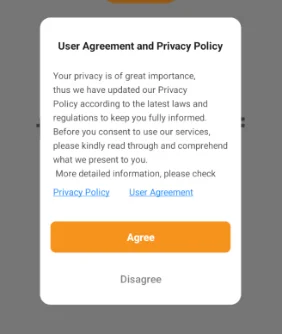
Then open the app, review and accept the user agreement and privacy policy.
Fig 1.3
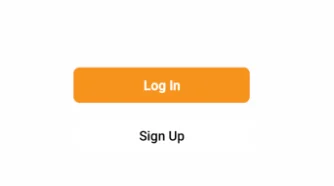
Press Sign Up and continue.
Fig 1.4
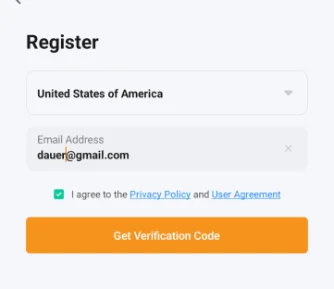
Enter your country and email address. Agree to the Privacy Policy and press Get Verification Code 
Fig 1.5
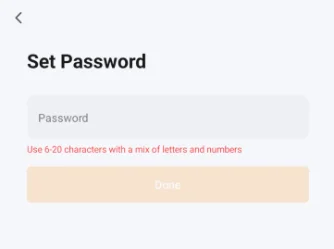
Enter the verification code sent to your email. Then set your password.
Fig 1.6
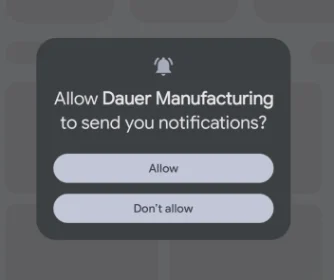
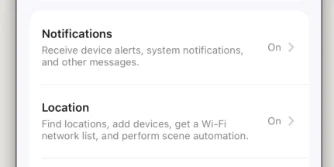
Follow the instructions to allow notifications and location services.
Fig 1.7
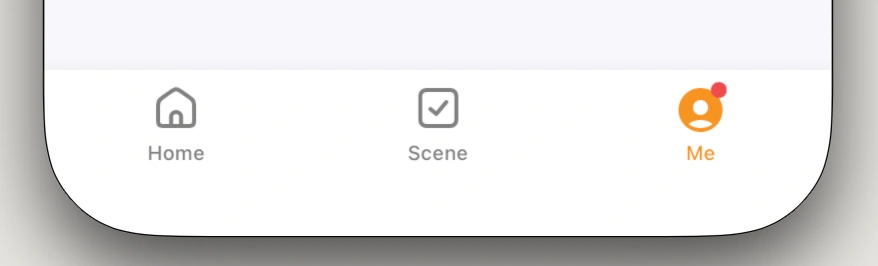
Go to the Me tab and click on settings and then privacy settings if you want to edit permissions. 
Fig 1.8
Allow location and home data permissions as required for device discovery, groups, and astronomical timers.
CHAPTER 2
Create a Home
CLICK OR SCAN · HOW-TO VIDEO
FIG 2.1
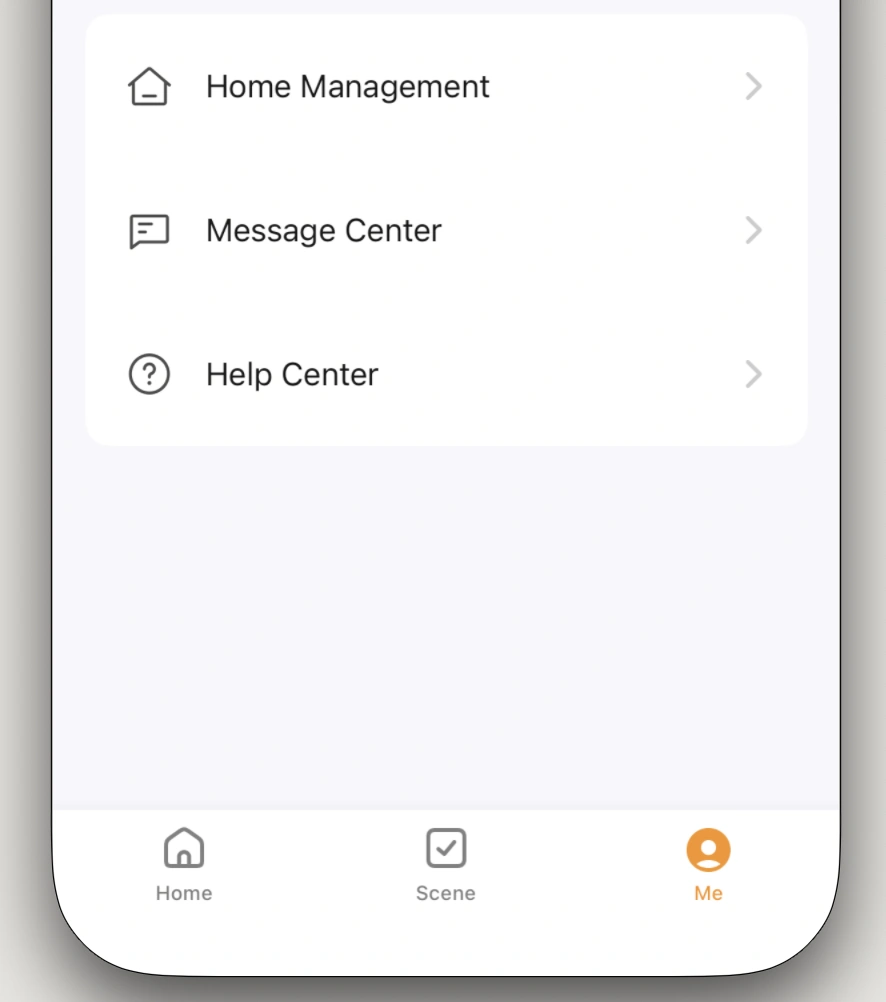
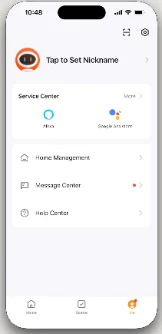
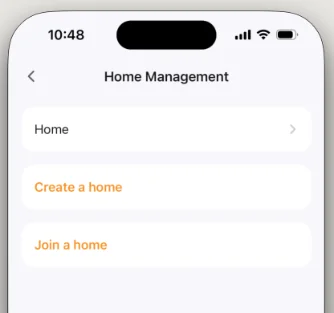
From the Me tab, select Home Management.
FIG 2.2
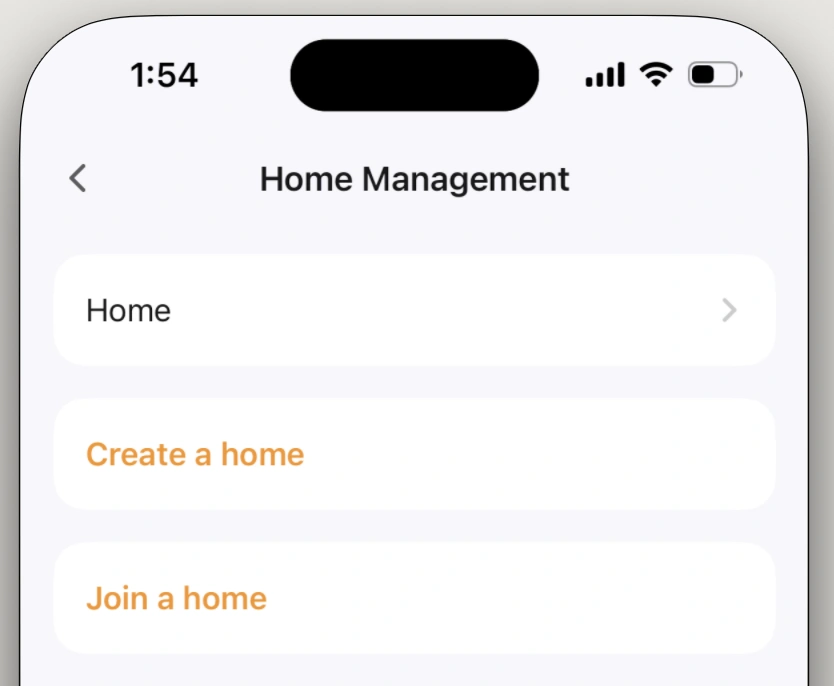
Tap Create a home. Existing homes are listed above it.
FIG 2.3
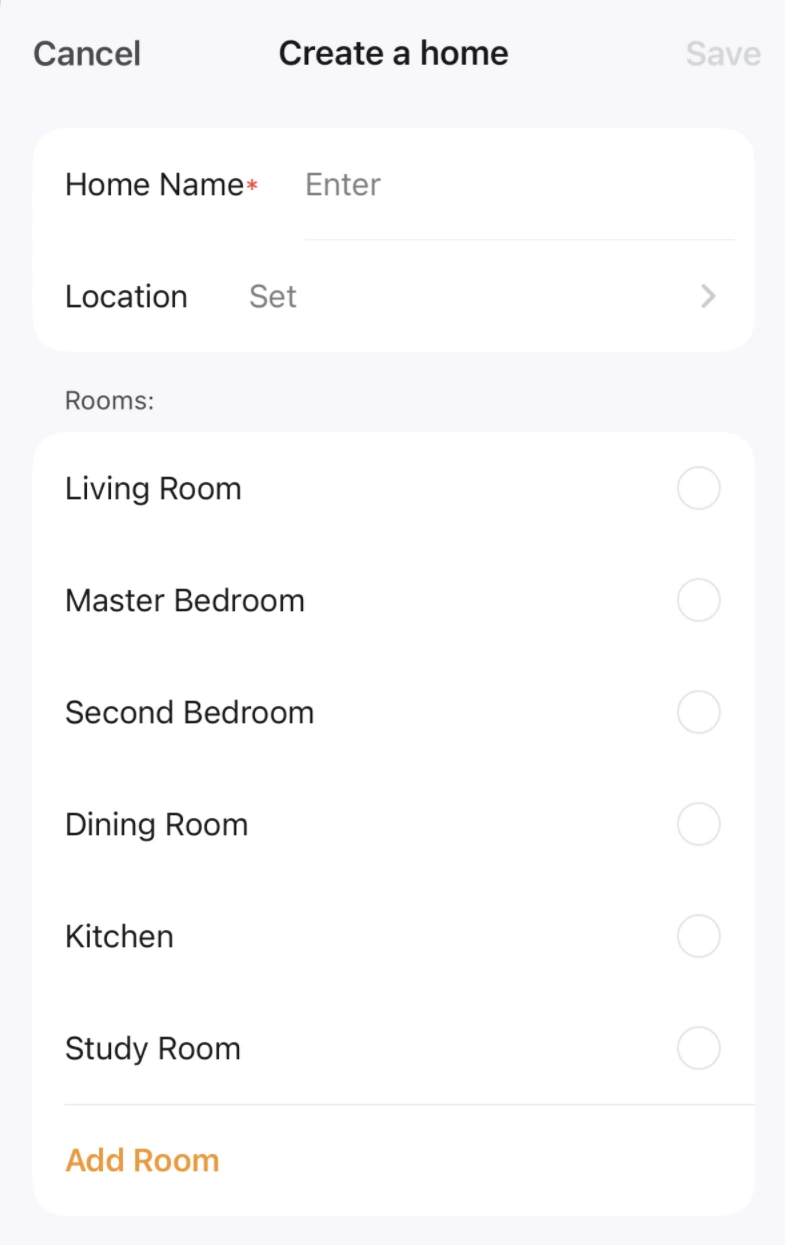
Enter a Home Name and set the Location, then tick the rooms this home needs.
FIG 2.4
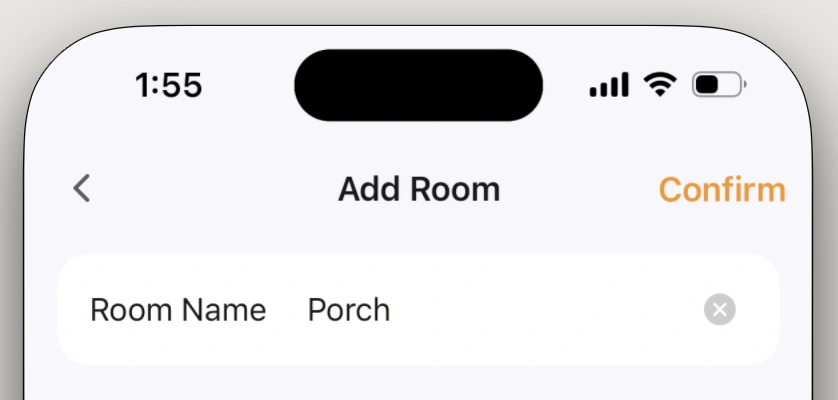
Use Add Room for rooms not on the default list, such as Porch, and press Confirm.
FIG 2.5
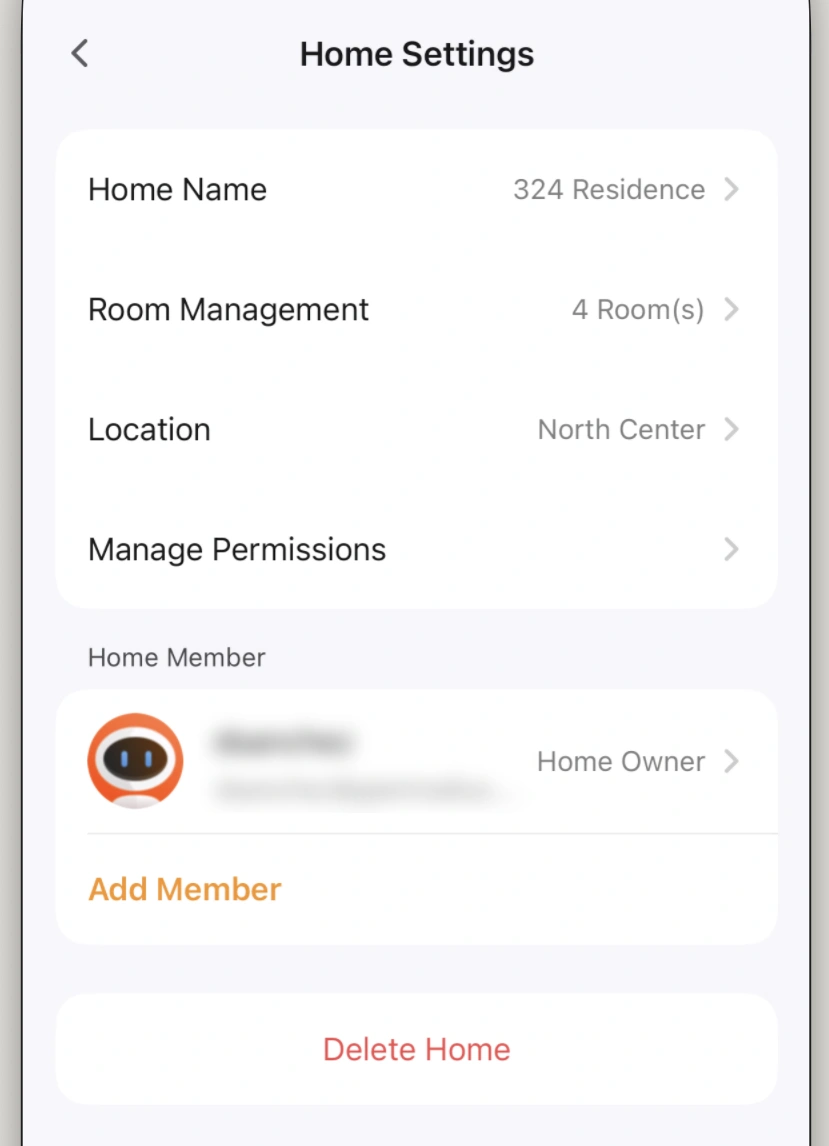
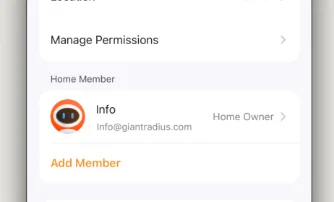
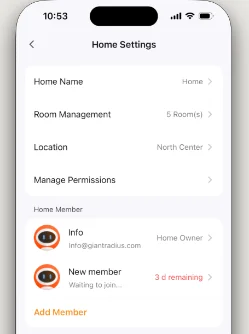
Review the home under Home Settings. The creator is the Home Owner; use Add Member to invite others.
FIG 2.6
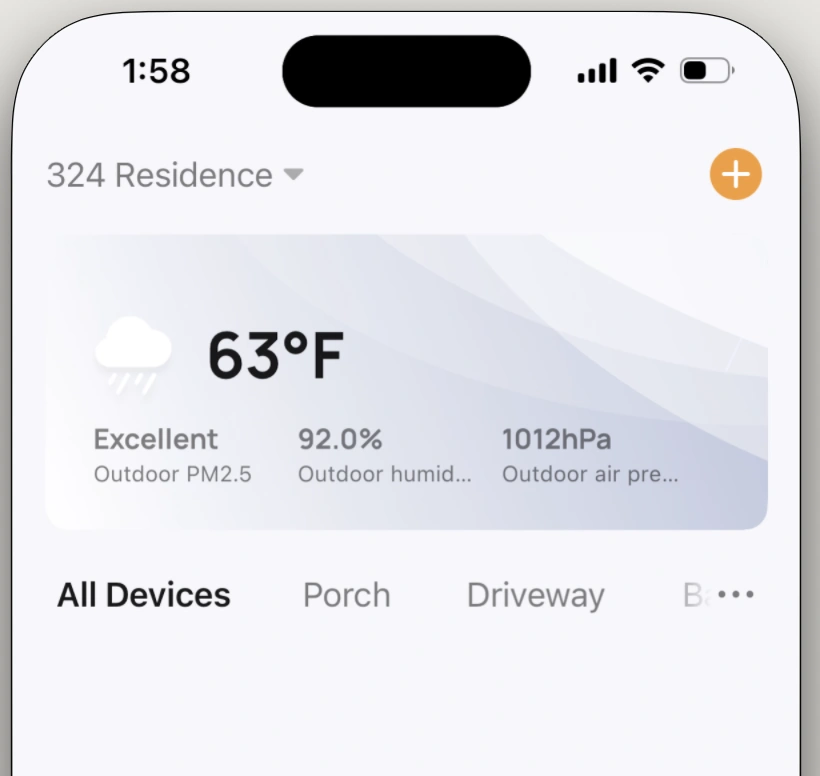
The new home appears on the Home tab, with its rooms as tabs beneath the weather panel.
DauerManufacturing.com · 888.DAUER.LED
MORPHEUSUser Manual
How-To Guide
CHAPTER 3
Adding the Fixture
CLICK OR SCAN · HOW-TO VIDEO
FIG 3.1
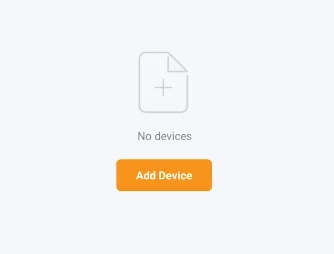
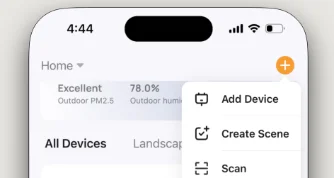
Return to the home tab and press the Add Device button.
FIG 3.2
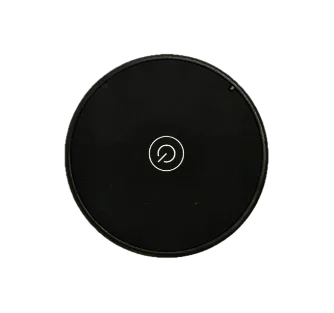
Point the RF clicker at the fixture. Press and hold the button until the fixture flashes to enter pairing mode.
FIG 3.3
From the Home tab, tap the + button and select Add Device.
FIG 3.4
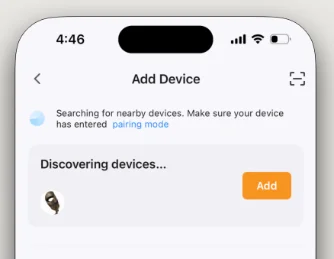
Select the Morpheus fixture under Discovered Devices. Keep your phone close to the fixture during pairing.
FIG 3.5
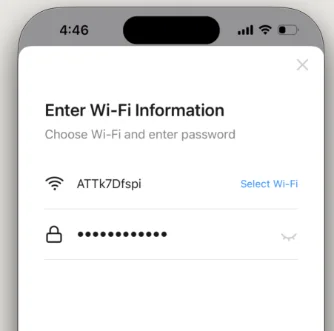
Select your 2.4GHz Wi-Fi network, enter the password, and tap Next.
FIG 3.6
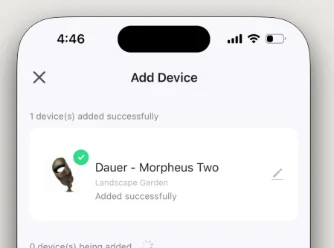
Once the device is successfully added, tap its name to open the Control Panel.
FIG 3.7
Test the controls to confirm the fixture responds properly.
FIG 3.8
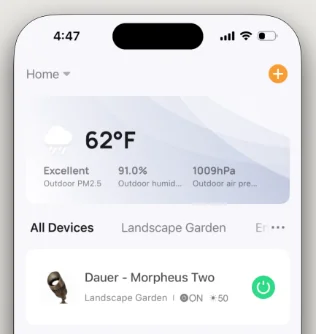
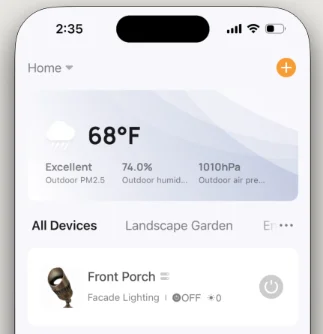
Your fixture will be listed on the home tab
CHAPTER 4
Add an Admin
Click or Scan · How-To Video
FIG 4.1
From the Me tab, select Home Management.
FIG 4.2
Select your home network from the list.
FIG 4.3
Press Add Member
FIG 4.4
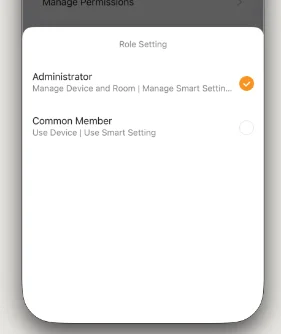
Tap Role and change it from Common Member to Administrator.
FIG 4.5
Choose Administrator and save. Giving your installer admin will allow them to troubleshoot remotely.
FIG 4.6
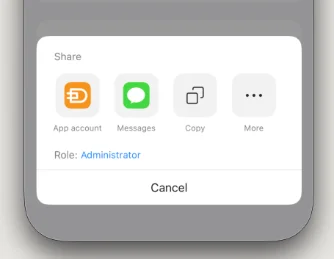
Tap Copy to copy the invitation link. Send it to the user via text or email.
DauerManufacturing.com · 888.DAUER.LED
MORPHEUSUser Manual
How-To Guide
FIG 4.7
Links expire in 3 days. To modify permissions later, select the member's name.
FIG 4.8
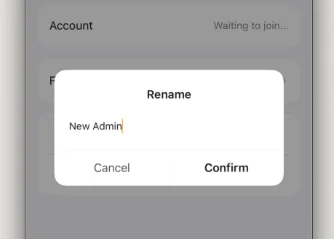
Customize the member's name, profile icon, or account role as needed.
FIG 4.9
Example of an edited administrator profile name.
CHAPTER 5
Control Panel Overview
Click or Scan · How-To Video
FIG 5.1
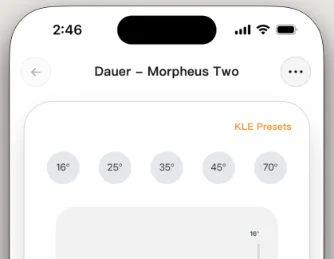
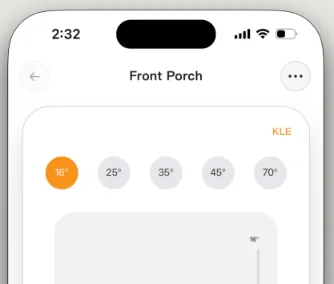
Select a fixture or group from the Home screen to open its Control Panel.
FIG 5.2
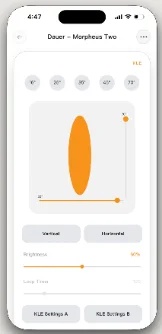
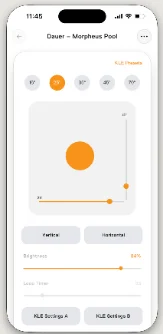
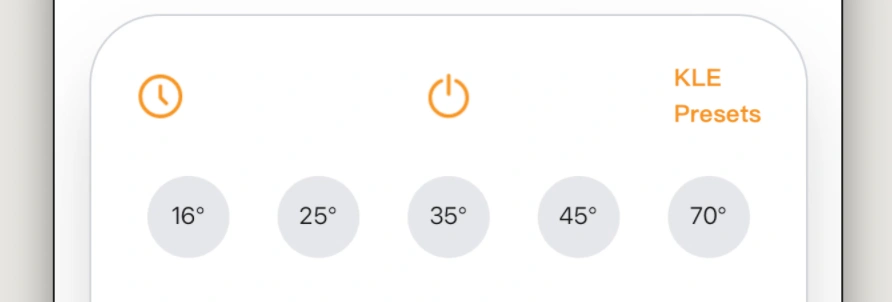
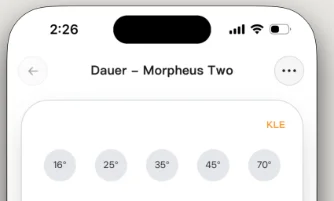
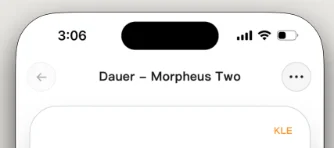
Tap a preset to instantly snap to that beam angle. Press the clock for the scheduler, the power button to turn on/off and the KLE Presets to access loops.
FIG 5.3
Use the KLE buttons to program your Kinetic Lighting Effect. More details are in chapter 11. 
FIG 5.4
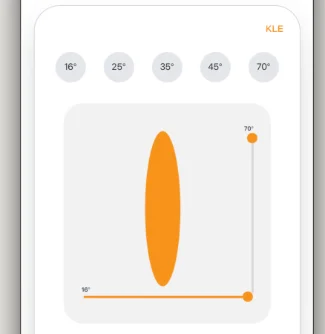
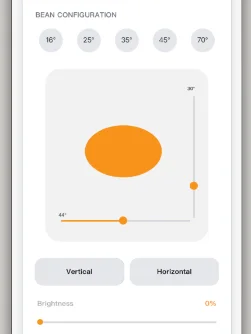
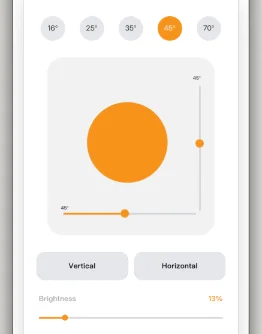
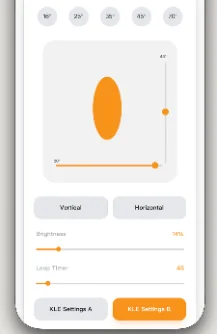
Drag the X and Y axis sliders to custom-widen or narrow the beam shape.
FIG 5.5
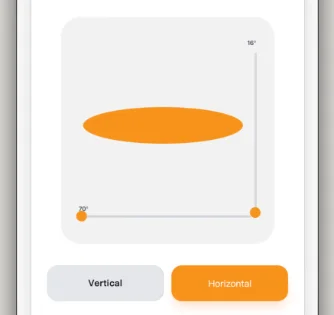
Tap Vertical or Horizontal mode to lock the sliders to a 16° by 70° ratio.
CHAPTER 6
Share a Fixture or Group
Click or Scan · How-To Video
FIG 6.1
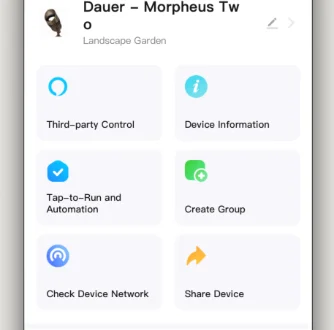
Open the fixture or group controls, tap the three dots (...) icon, and select Share Device.
FIG 6.2
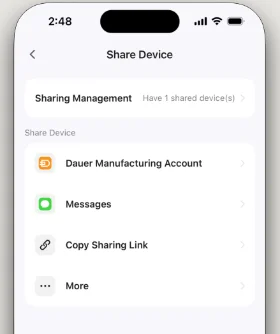
Select Share Device
FIG 6.3
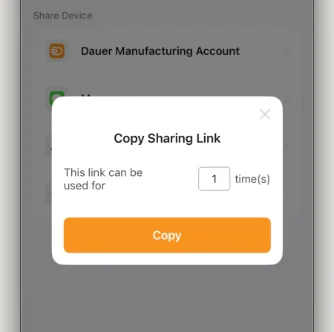
Tap Copy Sharing Link to copy the invitation URL to your clipboard.
FIG 6.4
Set the maximum number of times the link can be used to activate sharing.
FIG 6.5
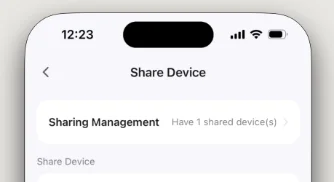
To view or remove existing users, tap Sharing Management on the Share Device screen.
DauerManufacturing.com · 888.DAUER.LED
MORPHEUSUser Manual
How-To Guide
CHAPTER 7
Astronomical Timer
Click or Scan · How-To Video
FIG 7.1
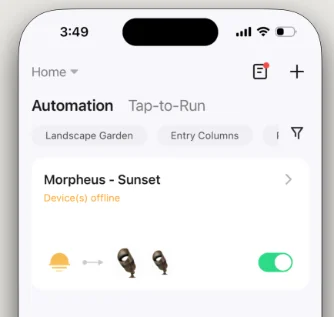
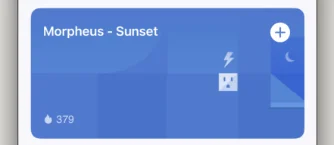
From the Scene tab, select either the Morpheus Sunset or Morpheus Sunrise tile.
FIG 7.2
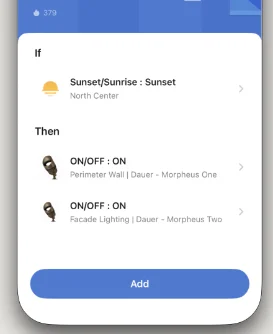
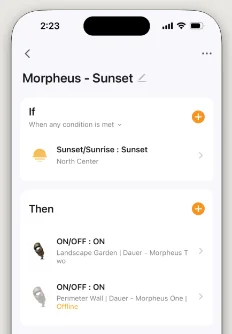
Tap a fixture name within the automation to customize individual settings or remove it.
FIG 7.3
Open your customized timer tile under the Automation list to modify its settings.
FIG 7.4
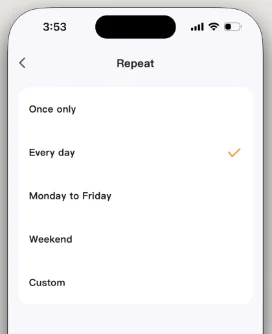
Tap Sunset/Sunrise to adjust execution frequencies, schedule days, or custom times.
FIG 7.5
Tap Custom to manually configure specific timer rules.
CHAPTER 8
Creating and Editing Groups
Click or Scan · How-To Video
FIG 8.1
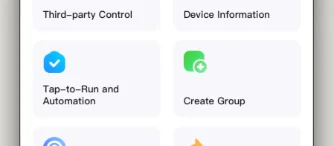
From the Control Panel of any fixture, tap the three dots (...) icon.
FIG 8.2
Tap the Create Group button.
FIG 8.3
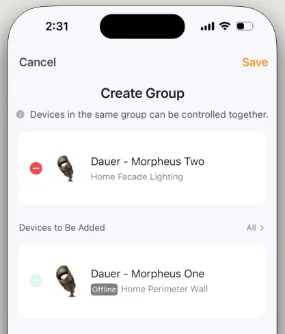
Select the fixtures you want to group together, then tap Save.
FIG 8.4
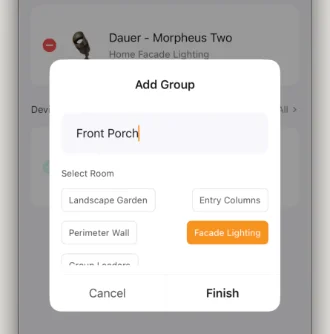
Enter a descriptive name for your group, then tap Finish.
FIG 8.5
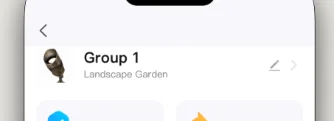
To edit any existing group or individual fixture, open its controls and tap (...).
FIG 8.6
Tap the Pencil icon next to the current name to modify device or group details.
FIG 8.7
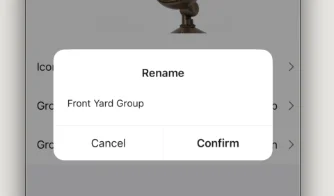
Enter a clear name (e.g., Front Oak, Fountain Accent) and assign an area or room.
FIG 8.8
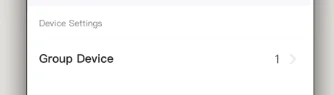
Tap Group Devices to add or remove fixtures from an active group at any time.
FIG 8.9
Your new group will appear in the list of devices on the home screen.
DauerManufacturing.com · 888.DAUER.LED
MORPHEUSUser Manual
How-To Guide
CHAPTER 9
Scheduling
CLICK OR SCAN · HOW-TO VIDEO
FIG 9.1
Select a device or group from the Home screen. From its Control Panel, tap the Clock icon.
FIG 9.2
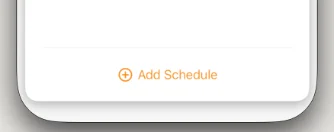
Tap the Add Schedule button at the bottom of the screen.
FIG 9.3
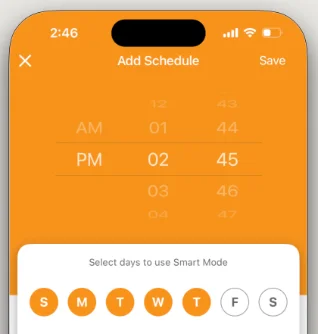
Choose the time, select the active days, and set the action to ON or OFF. Tap Save.
FIG 9.4
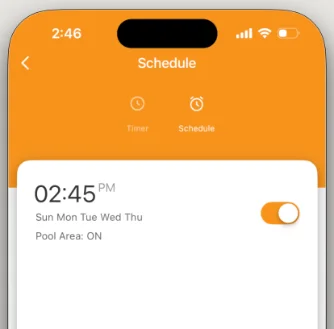
Review your new active schedule. Repeat these steps to add more schedules to the device or group.
CHAPTER 10
Create a Scene Preset
Click or Scan · How-To Video
FIG 10.1
From the Control Panel, tap the KLE Presets button.
FIG 10.2
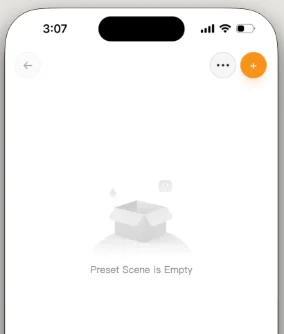
Tap the Add (+) button on the Presets screen.
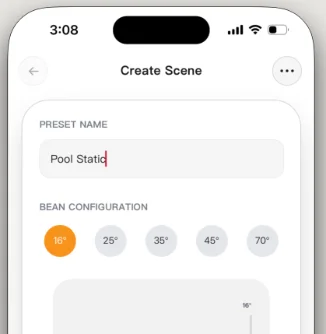
FIG 10.3
Enter a descriptive name for your custom static preset.
FIG 10.4
Adjust the sliders to set your desired beam angles and brightness.
FIG 10.5
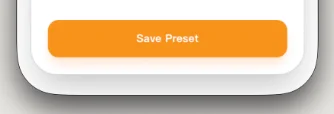
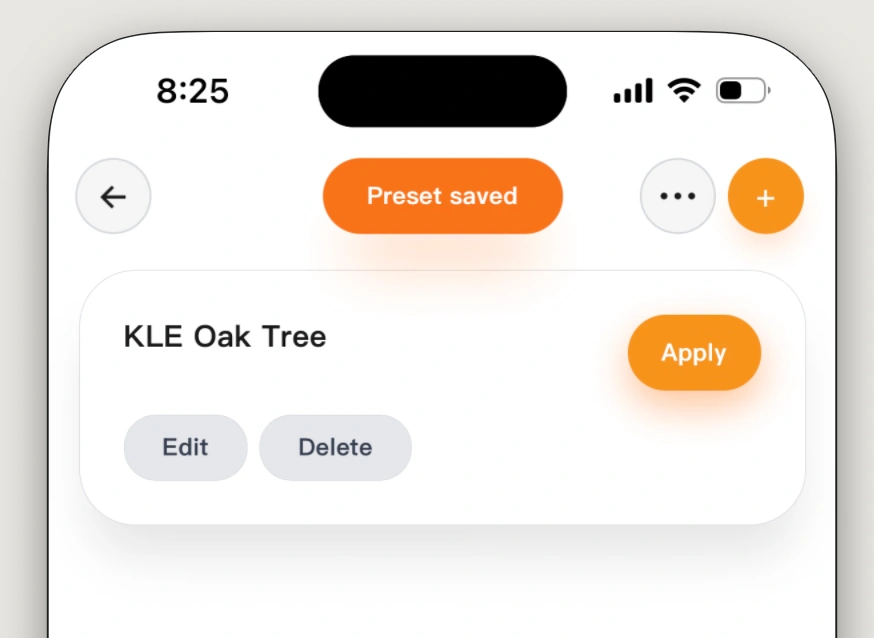
Tap the Save Preset button.
FIG 10.6
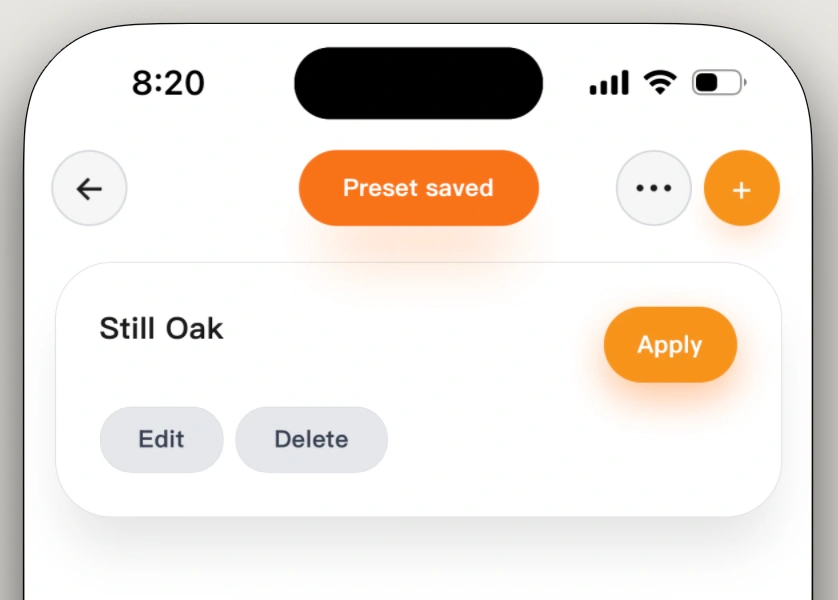
Your new preset is now stored and can be recalled from the KLE Presets screen.
CHAPTER 11
Kinetic Lighting Effect
Loops
Click or Scan · How-To Video
FIG 11.1
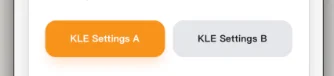
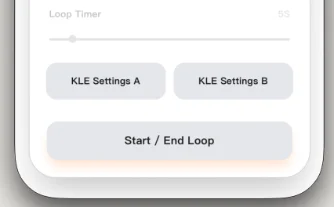
From the Control Panel, tap KLE Settings A to configure your animation starting point.
FIG 11.2
Adjust the sliders to set the initial beam angles and brightness for your start position.
FIG 11.3
Tap KLE Settings B to open your animation end point settings.
DauerManufacturing.com · 888.DAUER.LED
MORPHEUSUser Manual
How-To Guide
Fig 11.4
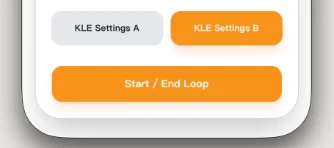
Set your destination beam angles, brightness, and use the Loop Timer to set cycle speed.
Fig 11.5
Tap the Start / End Loop button to preview your kinetic animation in real time.
Fig 11.6
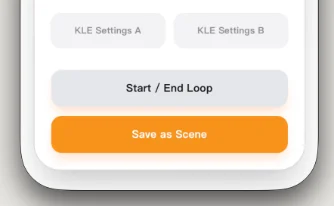
Save the kinetic effect as a named preset KLE Loop if desired.
Fig 11.7
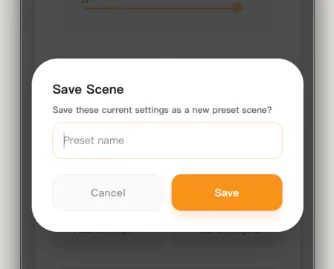
Name the KLE Loop and press Save.  The next section explains how to recall a saved KLE Loop.
Fig 11.8
Your KLE Loop preset is now stored and can be recalled from the KLE Presets Screen by pressing Apply
Fig 11.9
Alternatively you can create and save a KLE  animation directly from the KLE Presets screen.
CHAPTER 12
Geo Location - Arriving
Click or Scan · How-To Video
Fig 12.1
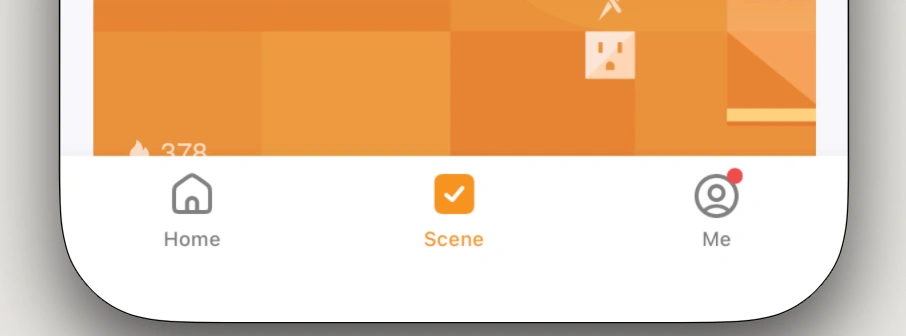
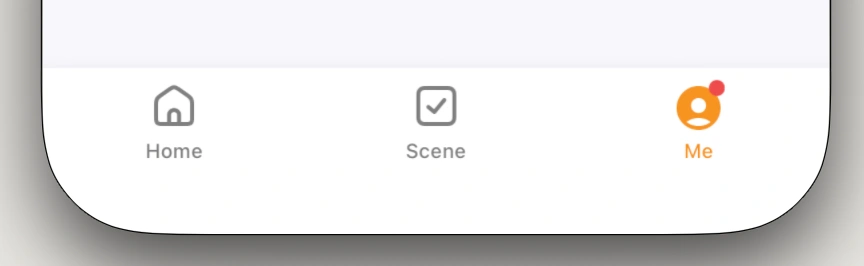
Select the "Scene" tab at the bottom of the screen.
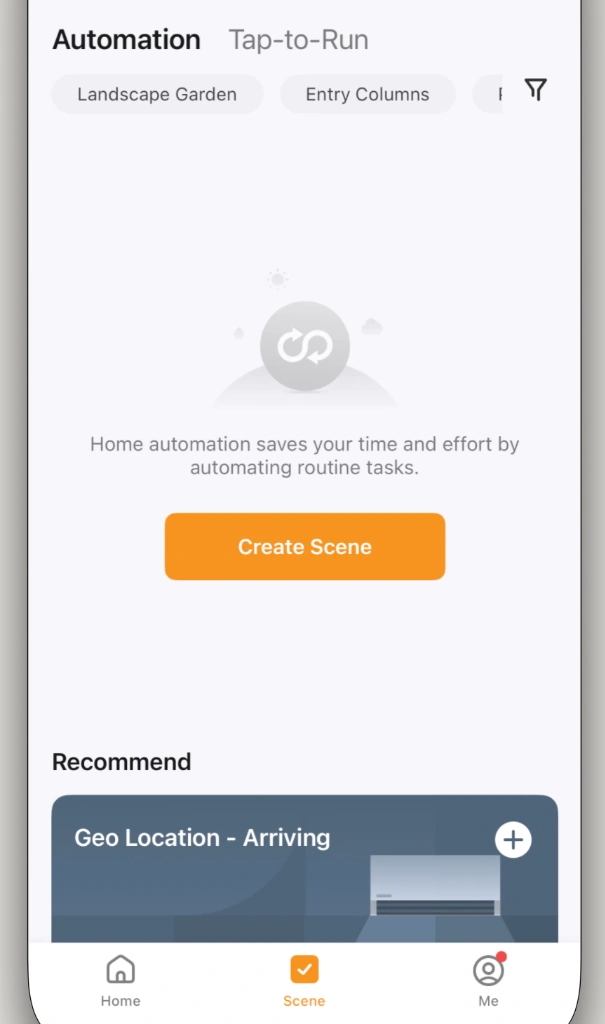
Fig 12.2
On the Scene screen, you will find options to create custom scenes or use recommended presets.
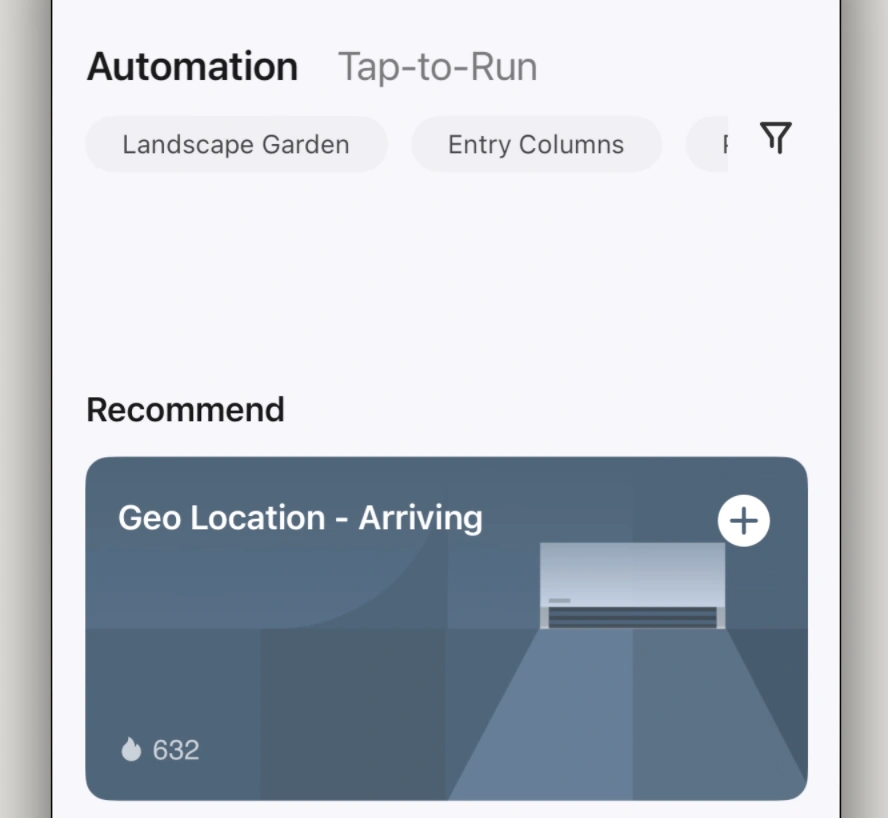
Fig 12.3
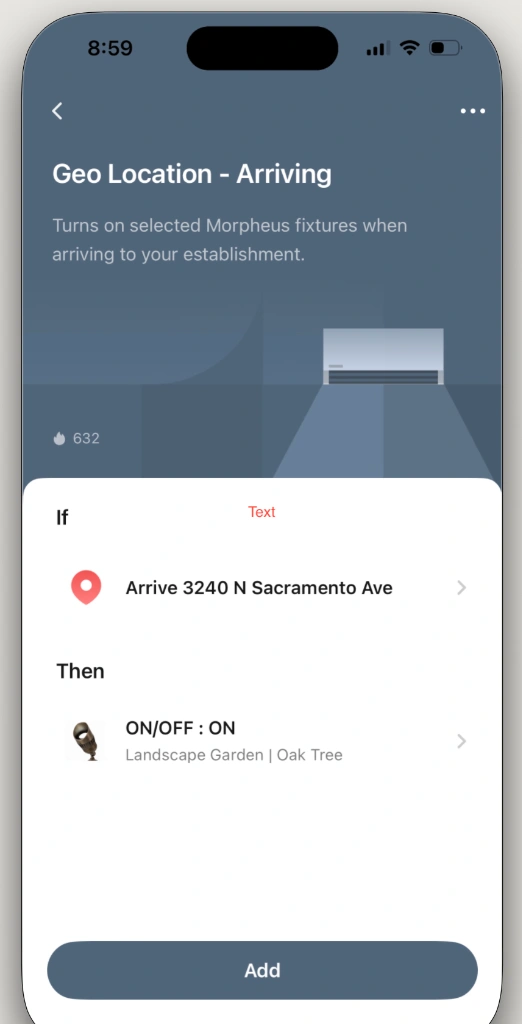
Under the "Recommended" section, locate "Geo Location - Arriving" and tap the "+" icon.
Fig 12.4
Set your location trigger under "If" and select the device action under "Then". Press "Add" at the bottom.
Fig 12.5
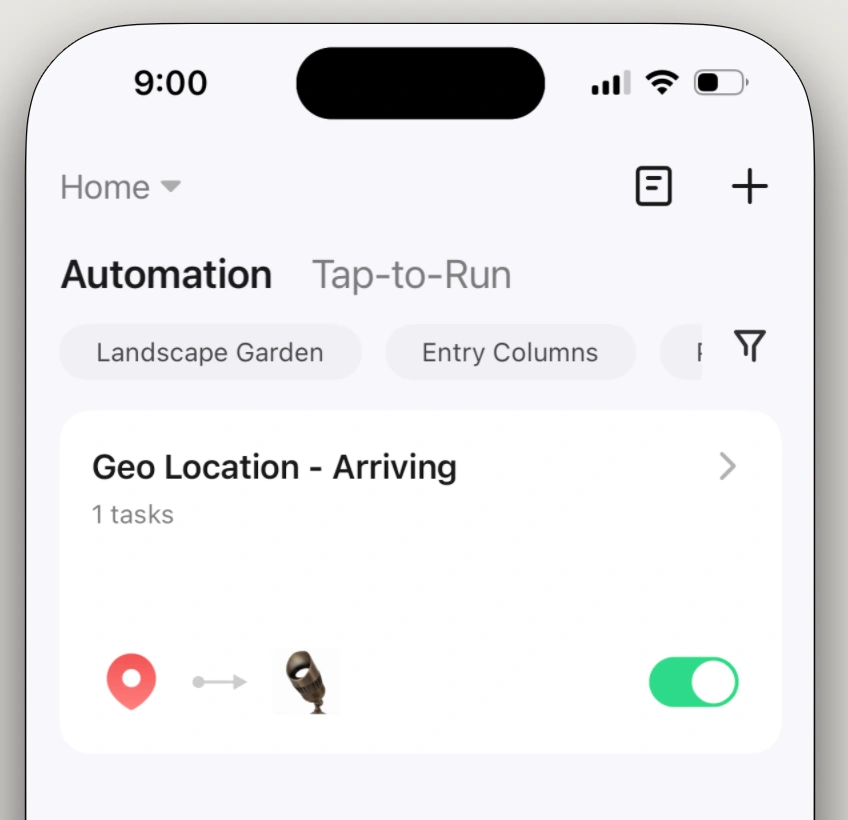
Your new preset is now saved and active under the "Automation" tab.
DauerManufacturing.com · 888.DAUER.LED
MORPHEUSUser Manual
How-To Guide
CHAPTER 13
Network Diagnosis
Click or Scan · How-To Video
FIG 13.1
From any screen, select the Me tab.
FIG 13.2
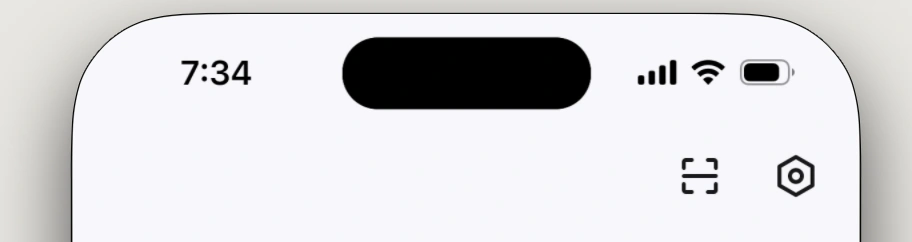
Tap the Settings icon in the top-right corner.
FIG 13.3
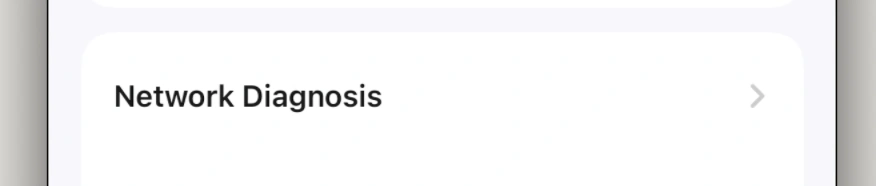
Scroll down and select Network Diagnosis.
FIG 13.4
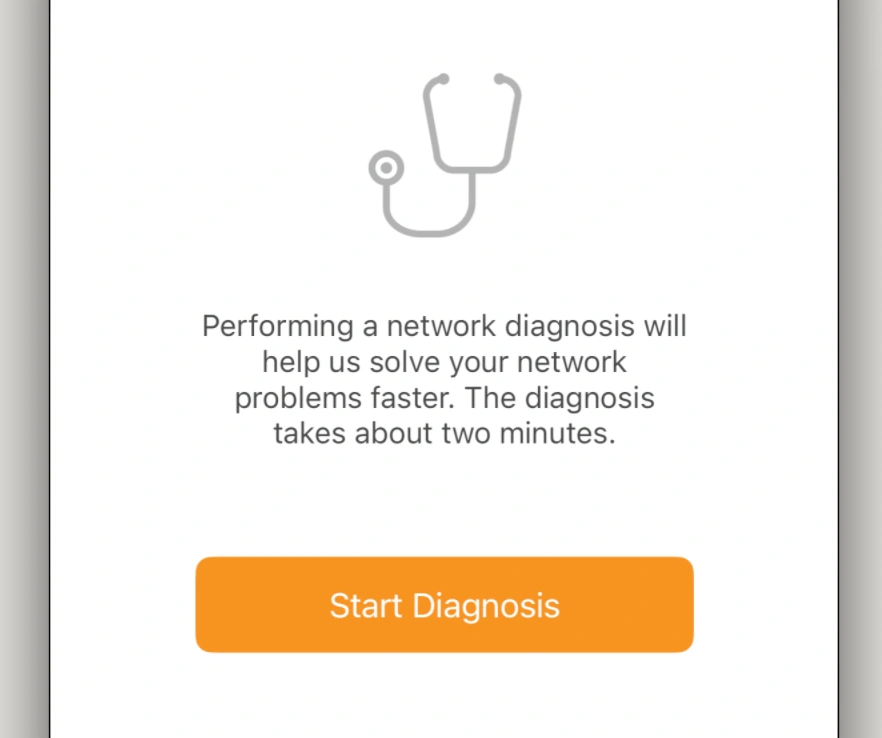
Tap Start diagnosis.
FIG 13.5
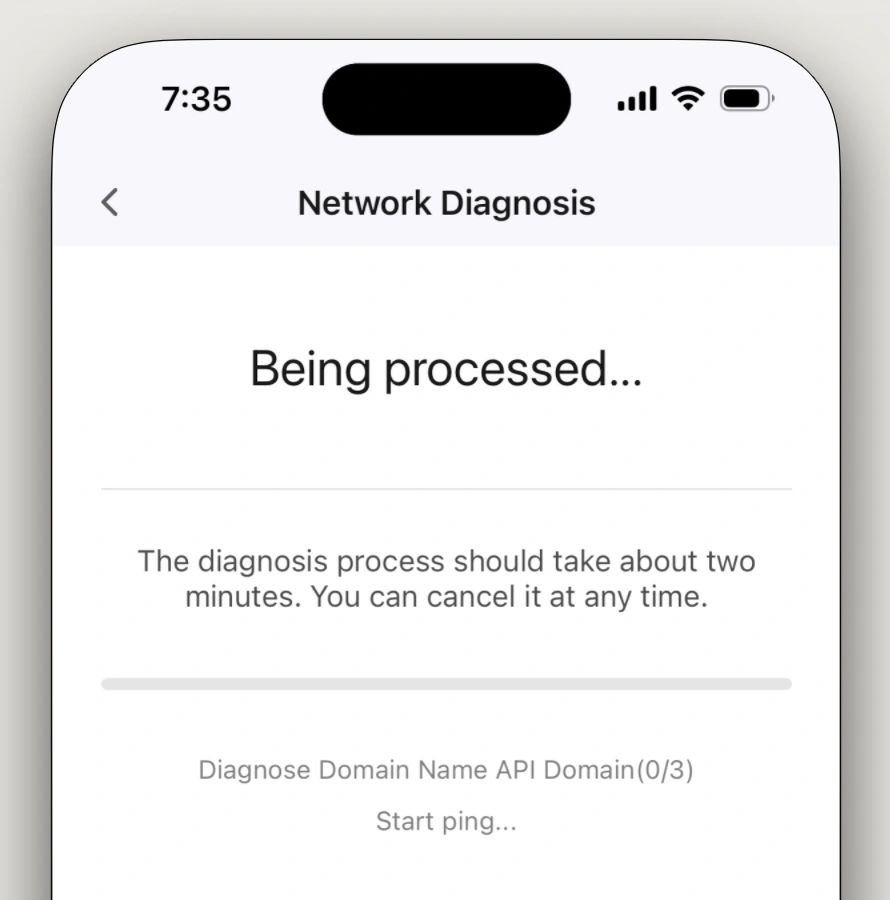
Processing may take a couple of minutes.
FIG 13.6
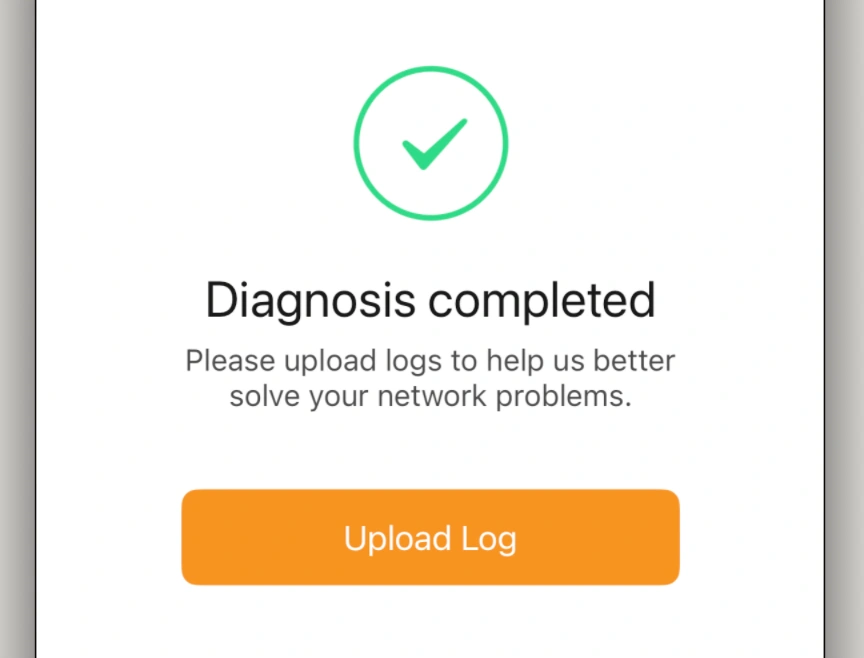
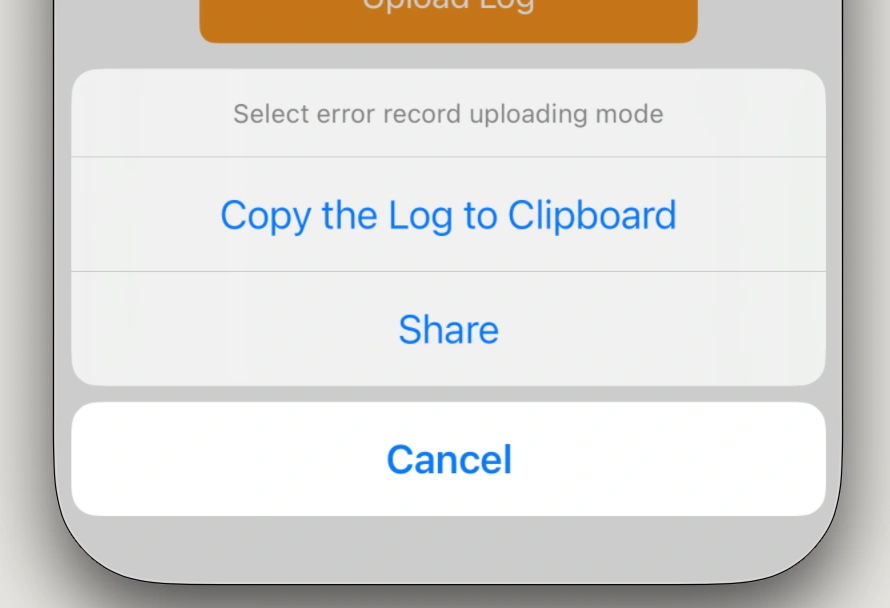
Once completed, tap Upload Log to view or share the diagnostic information.
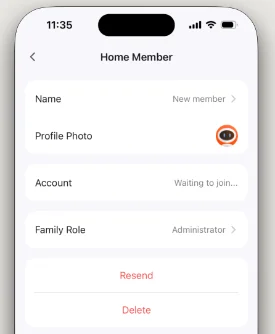
FIG 13.7
This information helps the installer or customer service resolve issues more efficiently.
DauerManufacturing.com · 888.DAUER.LED
MORPHEUSUser Manual
Additional Topics

Additional Topics

Quick reference for features that don't need full step-by-step spreads.

14
Network Expansion & Coverage Recommendations

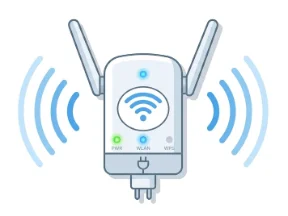
For larger installation areas that require extended coverage, the team strongly recommends implementing dedicated wireless access points rather than relying on standard router ranges. During our field testing, the TP-Link EAP650 - Outdoor demonstrated exceptional performance, maintaining a lag-free connection over a 400-foot range.

Integrating this hardware into the project scope ensures a stable, highly reliable connection for all smart landscape fixtures while simultaneously upgrading the client's overall property Wi-Fi infrastructure.
15
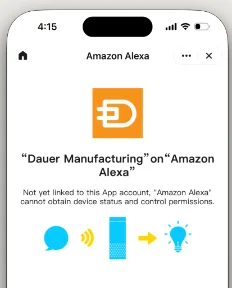
Voice Control Setup
ALEXA - GOOGLE
1. Every Morpheus fixture is individually addressable on your network. 
2. View its IP and MAC in Device Info to identify, ping, or troubleshoot the fixture from your router. 
3. Use a DHCP reservation if you need a stable address for integration with third-party controllers.
16
OTA Firmware Updates
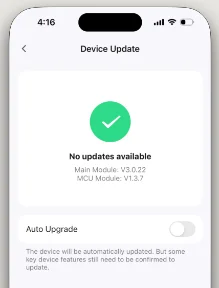
When a firmware update is available, the Dauer Smart App displays a badge on the device tile. Tap Update and keep the fixture powered and within Wi-Fi range until the progress bar completes (typically 2–4 minutes). The fixture reboots automatically and restores its previous state.
17
Download iOS or Android App
STEPS TO INSTALL
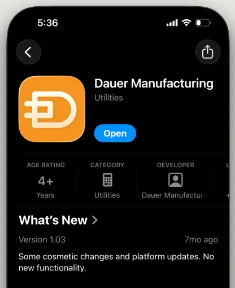
1. Search for and  download the "Dauer Manufacturing" on the iOS or Android App Stores
2. Follow the steps that include: Allow Notifications and Terms Agreement.
3. Create an account. Follow the steps to verify your email.
4. Login and allow For: Bluetooth and Location Settings
5. You are now ready to add the Morpheus. See Chapter 3 for details on adding a device.